This blog post talks about the analysis of a Screenconnect (ConnectWise) payload.
Introduction
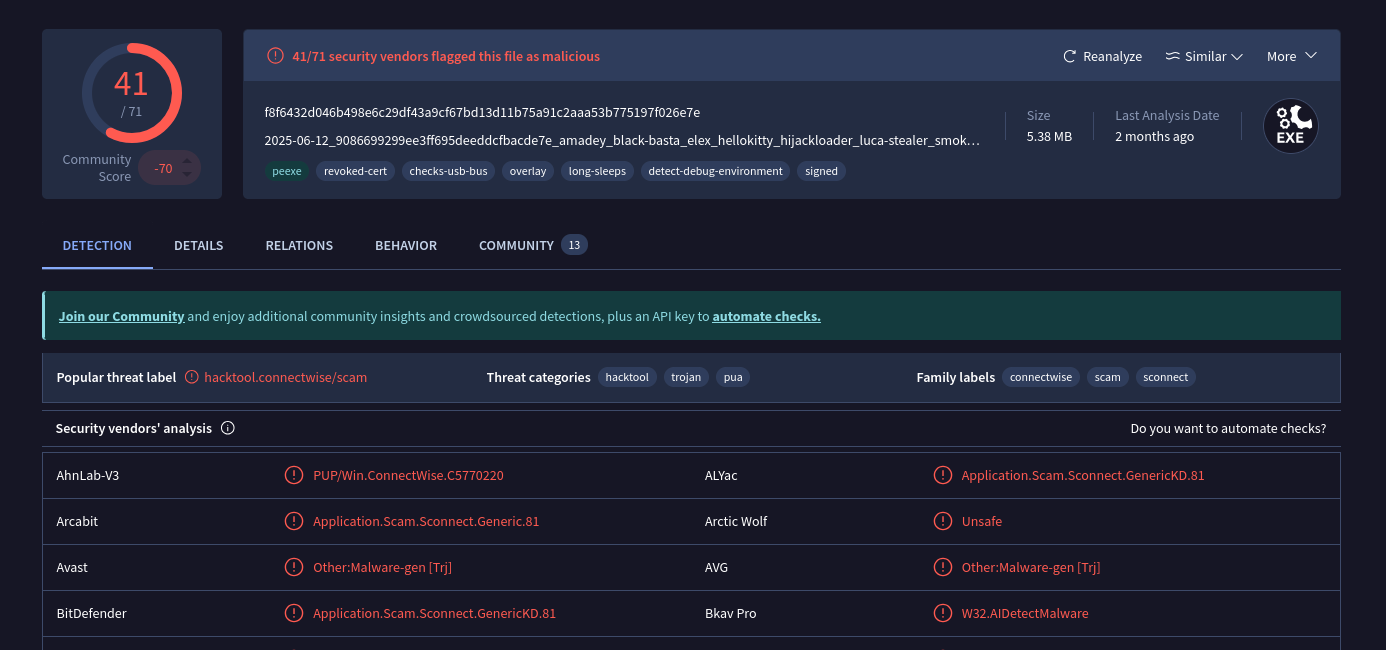
Hi everyone, I’m back with some interesting things to share regarding a recent exploration of ConnectWise malwares. I’m exploring basic RE and slowly learning as we go about. Hopefully the complexity of the articles increase as time passes! VirusTotal link: here 🔗
Getting the sample
Download sample from Malware Bazaar: here 🔗. The default password for the file is “infected”.
Imphash
If you navigate and look at the imphash 🔗, there’s actually quite a few more samples that are similar. The overall sha256 hash is likely different due to them having different c2 endpoints.
Background info
A pretty old article (written 2024) by Sophos 🔗 talks about how attackers exploit Screen connect vulnerabilities to deliver malware. A more recent article (2025) here 🔗 talks about how threat actors leverage legitimate, digitally signed ConnectWise ScreenConnect client software, reconfigured to connect to attacker-controlled servers (e.g., connect-004.controlhub.es). These servers are illicitly operated by malicious actors for nefarious purposes.
That’s pretty smart actually! Attackers are using “legitimate” SaaS software in a malicious way. Given that there’s so many written articles about these exploitations, its safe to say that it works. People fall for it…
Lets try to extract the remote server that this binary tries to connect to. If you throw this sample into any sandbox, you’ll be able to see the remote connections made! That is probably the most surefire way to know as sometimes TAs can obfuscate this logic that prevents static analysis. From VT’s “Relation” tab, you’ll be able to see the C2 IP as well.
But lets do it manually! A simple strings command shows some human read-able text. Scrolling around, there was this chunk of text that has an IP address connecting to port 8041. Tada, as simple as that, we got the C2 remote ip address.
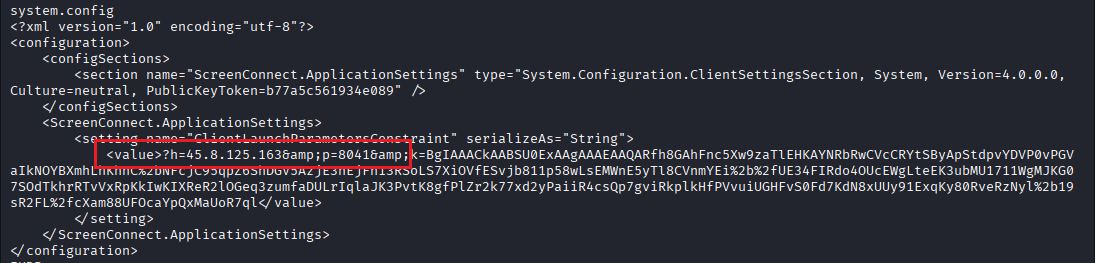
Heres another (more tedious) method using binwalk to arrive at the same outcome.
binwalk -e test.exe
binwalk --dd='xml:xml' 559F9D.zlib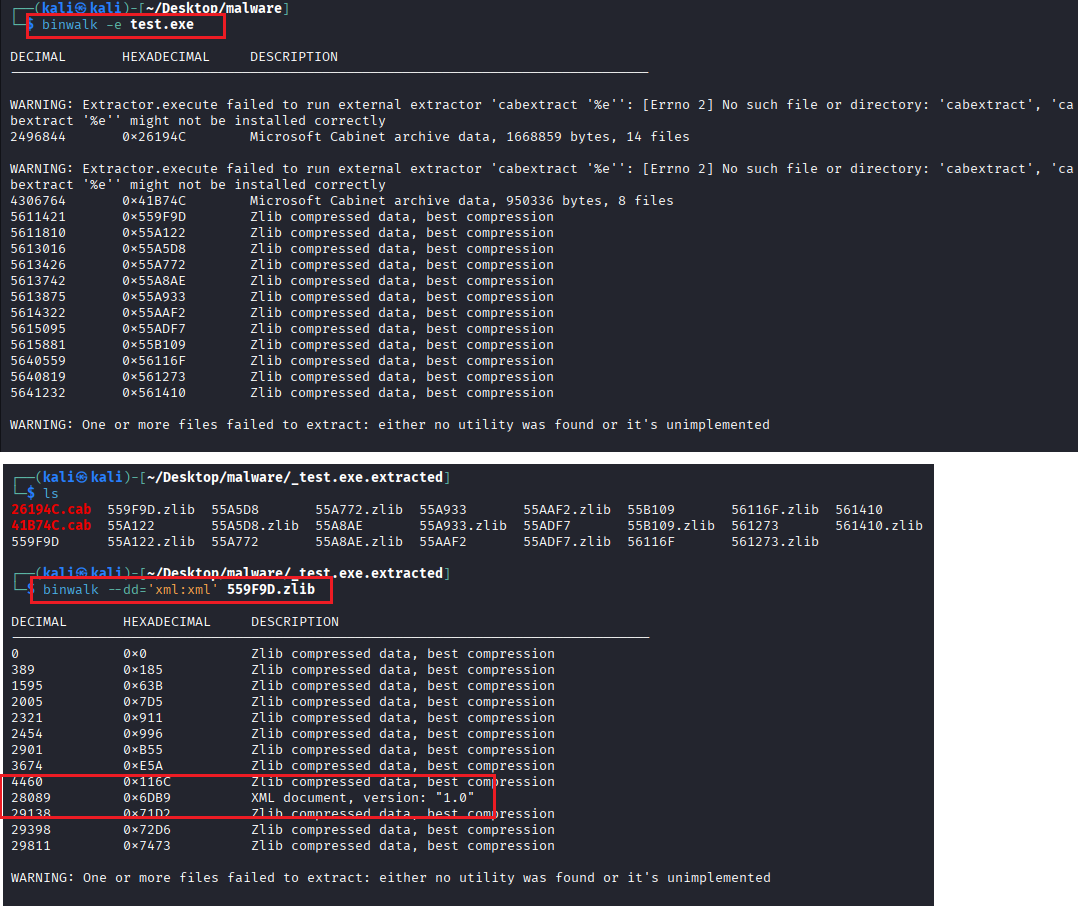
Opening the XML file will show that same blob of text followed by some PNG headers. Lets combine this into a more generic command for all known types.
binwalk -Me --dd=".*" test.exeSort the folder by type and look at the XML file types. Some of those XMLs are config related, one of those contains the remote c2 ip. Thats all~ On a side note, binwalk actually extracts known types such as images as well. If you noticed, it actually managed to reconstruct back some PNG files hahah.